


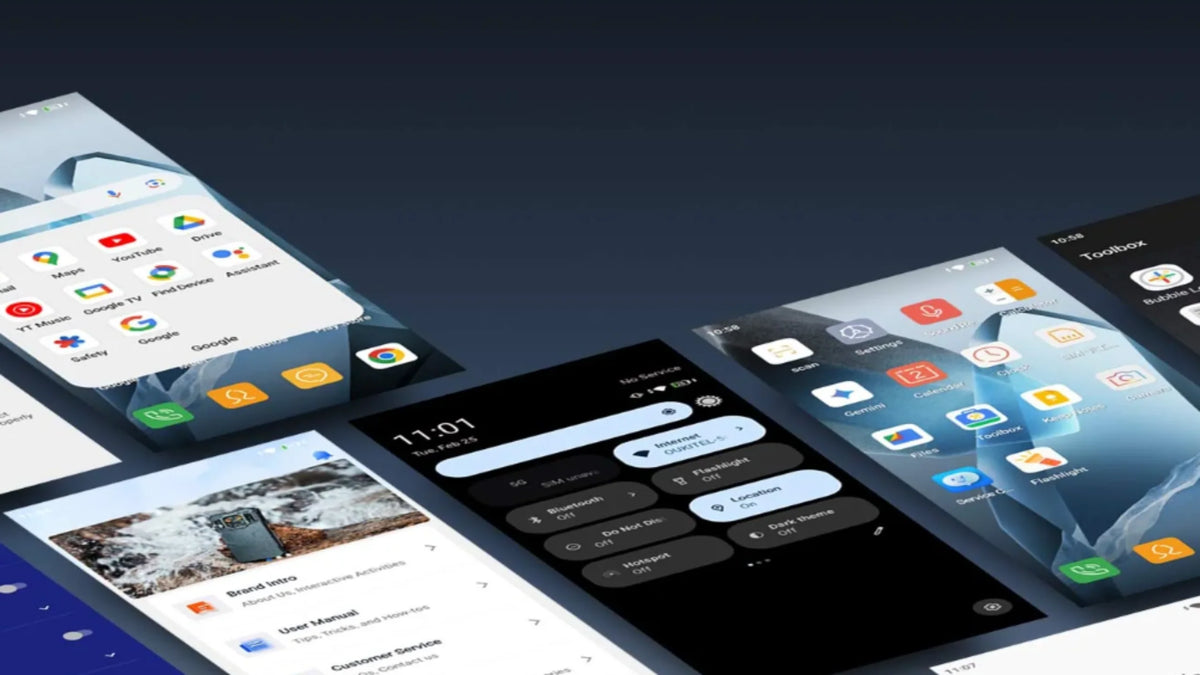
Android phones, including Android 15 devices, are highly customizable and powerful, but sometimes that flexibility leads to problems, one of the most confusing being missing app icons. You download an app, use it for weeks, and suddenly the icon disappears from your home screen or entire app drawer.
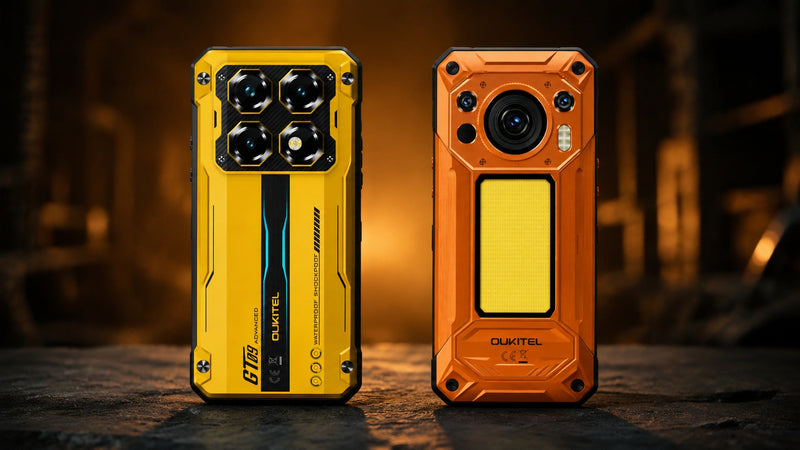
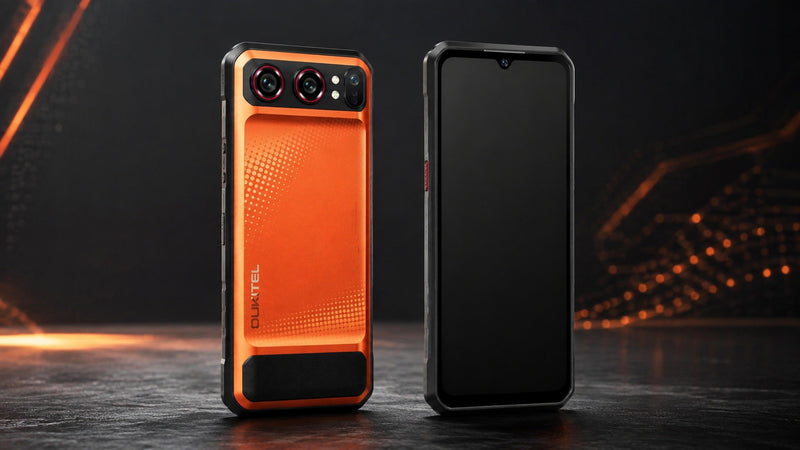
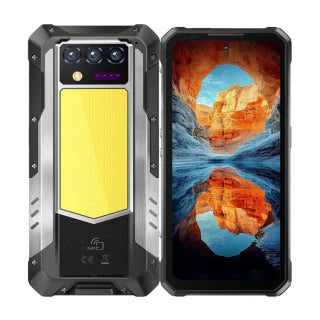
If you’re using a rugged Android 15 phone like the OUKITEL WP60, WP56, WP200 Pro, WP55 Ultra, WP33 Pro, or any device from the OUKITEL rugged lineup, the good news is that missing app icons are usually caused by small, fixable settings not hardware issues.
In this guide, we explain why app icons go missing on Android, how to restore them quickly, and why rugged phones with clean Android builds make troubleshooting easier.
Why App Icons Go Missing on Android 15
Missing icons usually aren’t caused by system faults. In most cases, one of these is the cause:
- The app was accidentally removed from the home screen
- The launcher reset after an update
- An app was disabled
- A work profile or guest mode hid the app
- A folder was accidentally created
- The app is hidden by launcher settings
- Permissions were changed
- A software update refreshed the layout
- SD card apps didn’t load immediately
- The device entered Easy Mode or Simple Mode
- Cache or launcher data got corrupted
Rugged phones like OUKITEL models rarely experience launcher bugs, but missing icons still happen after updates, settings changes, or accidental actions.
Let’s go step-by-step and fix it.
Check if the App Icon Is Just Removed from the Home Screen

Many users mistake a removed icon for an uninstalled app.
To restore it:
- Open the App Drawer (swipe up on home screen).
- Scroll to find your app.
- Long-press the app.
- Drag it back to the home screen.
This method applies to all OUKITEL rugged phones from WP60’s 7.2-inch display to WP55 Ultra’s 6.6-inch screen.
Verify the App Is Still Installed
Sometimes apps uninstall without users noticing, especially if the SD card was removed, storage was full, or a cleanup tool flagged an app.
Go to:
Settings → Apps → See all apps
If the app is missing from this list, reinstall it from Google Play Store.
Check Whether the App Is Disabled
A disabled app disappears from the launcher completely.
To check:
- Go to Settings.
- Tap Apps.
- Scroll for apps marked Disabled.
- Tap the app → tap Enable.
OUKITEL rugged phones use near-stock Android, making this process simple and consistent across devices.
Make Sure the App Isn’t Hidden in the Launcher

Many Android launchers allow hiding apps for privacy.
Check this by:
- Opening the app drawer.
- Tapping the menu icon (⋮).
- Selecting Hide apps, Hidden apps, or Home Settings.
If your app is hidden, unhide it.
OUKITEL phones often use a clean launcher layout, but hidden apps can still appear if settings were changed.
Look Inside Folders
Sometimes icons disappear simply because they were dragged into a folder.
Search folders for:
- Tools
- Games
- Recently Added
- Work
- Media
This is especially common on large-screen devices like WP60 where multiple home screen pages exist.
Reset the App Drawer Layout
Sometimes icons disappear after a launcher glitch.
To refresh the layout:
- Long-press anywhere on the home screen.
- Tap Home settings.
- Look for Reset layout, Restore default layout, or Home screen style.
This restores all icons to default positions.
(On rugged OUKITEL models, this resets layout only, not data.)
Check Your Work Profile or Guest Mode
Many rugged phones like the OUKITEL WP60, WP56, WP200 Pro, WP55 Ultra, WP33 Pro, are used by outdoor workers and companies in logistics, construction, utilities, or field operations. These phones often run Android Work Profile, which separates personal and work apps. Since rugged phones are often used as dual-purpose devices (Work & Personal Life), toggling the Work Profile is the #1 reason icons seem to vanish. Check your 'Work Mode' toggle in the Quick Settings menu first!
If your app icon is missing:
It may belong to:
- A disabled Work Profile
- A paused Work Mode
- A Guest Profile
Check the Quick Settings panel for a Work Mode toggle. When work mode is off, all work apps (and icons) disappear.
Confirm That You Didn’t Install the App to SD Card
If you’re using an SD card and the card was removed or corrupted, the app icon may disappear.
Go to:
Settings → Storage
Check whether apps are installed on SD.
Reinsert the SD card or reinstall apps to internal storage.
Most OUKITEL rugged phones support large internal storage (256GB–1TB), reducing SD card reliance.
Check App Permissions
Some icons disappear if essential permissions are revoked.
For example:
Launchers need permission to display home screen shortcuts.
Go to:
Settings → Apps → Home/Launcher App → Permissions
Ensure permissions are allowed.
Clear Launcher Cache (Safest Fix)
If your launcher is glitching:
Steps:
- Go to Settings → Apps
- Search for your launcher (e.g., “Launcher,” “System Launcher”)
- Tap Storage
- Tap Clear Cache
Do NOT tap Clear Data unless necessary it resets your entire home screen.
OUKITEL rugged devices running Android 15 often fix icon issues immediately after a cache clear.
Restart Your Device
A simple reboot can restore missing icons by refreshing the launcher process.
Long-press Power → Restart
On devices like WP56 (16,000mAh battery), restarts are quick thanks to optimized Android 15 performance.
Update Apps and System Software
Sometimes missing icons come from:
- Outdated launcher
- Old app version
- Incomplete update
- Temporary bugs
To update:
Settings → System → System Update
and
Play Store → Manage Apps → Update All
OUKITEL rugged phones frequently release stability updates to optimize performance and UI behavior.
Reset Home Screen Style or Layout Mode
Some Android skins include “Simple Mode,” which removes many icons.
Go to:
Settings → Home Screen → Home Screen Style
Switch back to Standard Mode.
If you’re using a rugged phone for work, your employer’s MDM may enforce a simplified layout check with your administrator.
Reinstall the App Completely
If nothing works:
- Uninstall the app
- Restart the phone
- Reinstall from Google Play
This restores all components including the icon.
Factory Reset (Last Resort Only)
If your app drawer or launcher is severely broken:
Settings → System → Reset Options → Erase all data
This removes any hidden misconfiguration but should only be used when other fixes fail.
If a reset is needed, OUKITEL’s near-stock Android interface makes the setup process quick and clean, so you get back to work faster.
Why OUKITEL Rugged Phones Make Troubleshooting Easier
OUKITEL rugged phones WP60, WP56, WP55 Ultra, WP33 Pro, WP210 and others offer several advantages that reduce icon disappearance issues:
Clean, near-stock Android
Fewer launcher bugs and no bloatware.
High-performance processors
Smooth UI behavior (Dimensity 7025, Dimensity 7050, Dimensity 6100+).
Large screens
Easy to organize apps (6.6"–7.2").
Strong RAM capacity
Up to 24GB–48GB RAM expansion reduces system glitches.
Massive batteries
The system never force-closes apps due to low power.
Rugged construction
Rugged screens (Gorilla Glass) prevent phantom touches or dead zones, ensuring that you don't accidentally drag icons into the trash while working with gloves or wet hands.
These devices are designed for heavy-duty environments where workers need reliable access to apps, navigation, and communication tools.
Frequently Asked Questions
Why are app icons missing on Android 15 phones?
Common causes include hidden apps, disabled apps, launcher bugs, SD card issues, or home screen resets.
Do missing icons mean my phone has malware?
Not usually. But if unknown apps appear, run Play Protect scans.
Do rugged phones have fewer icon issues?
Yes, rugged phones like OUKITEL models run clean Android 15 systems with stable launchers.
Will resetting the launcher delete my apps?
No, but it may reset your home screen layout.
Can updates hide icons?
Launcher or system updates sometimes reset the layout, temporarily hiding icons.
Can SD cards cause disappearing icons?
Yes, apps installed on SD cards can vanish if the card is removed or corrupted.
Conclusion
When app icons are missing on Android, it’s usually a simple fix:
- Check the app drawer
- Unhide apps
- Enable disabled apps
- Reset the launcher
- Repair home screen settings
- Reboot
- Update system software
On rugged OUKITEL phones built with long battery life, stable Android 15 systems, and powerful processors, restoring app icons is fast, seamless, and reliable.



Leave a comment
Your email address will not be published. Required fields are marked *