


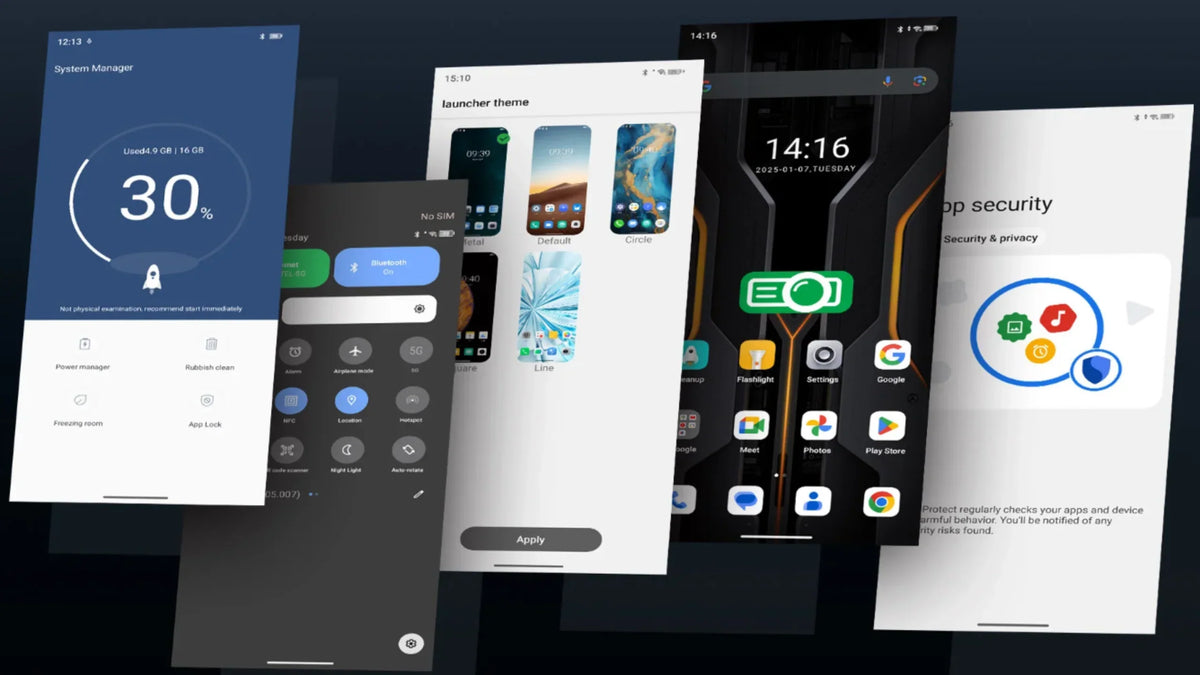
Android offers more openness, customization, and flexibility than any other mobile operating system and for most users, that’s a huge advantage. But this freedom also creates one important question you’ve probably asked yourself at least once:
Are there hidden apps on this device?”
Android devices sometimes include apps that don’t show up in your app drawer. Most of the time, these are system services, Work Profile tools, or manufacturer utilities that keep the interface clean while features run normally in the background.
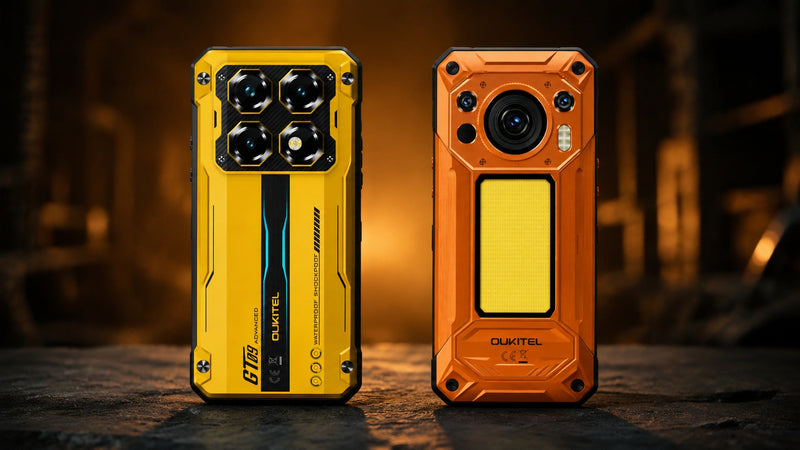
Whether you’re using a rugged Android phone like an OUKITEL WP60, WP56, WP55 Ultra, WP33 Pro, or any device at home or work, If you want a quick way to view everything installed and keep your device tidy— this article will provide the fastest method.
What Are Hidden Apps on Android?
Hidden apps are applications installed on your phone that don’t appear in the normal app drawer or home screen, often acting as dedicated 'engineers' that keep your device running smoothly in extreme conditions. These apps can be:
System apps
Built-in tools essential for Android’s functionality.
Device-admin or enterprise apps
Used in corporate environments, remote work, or rugged-field operations (MDM).
Parental control or monitoring apps
Installed intentionally to supervise device usage.
Background services
Apps that run without a visible interface.
Work Profile apps
Separated apps installed through Android Work Mode or enterprise management systems.
On rugged phones often used in construction, logistics, outdoor operations, and field service device transparency is especially important. Workers and companies need to know what is running on a device to maintain performance and security.
Why Rugged Phones Often Involve Hidden System Apps

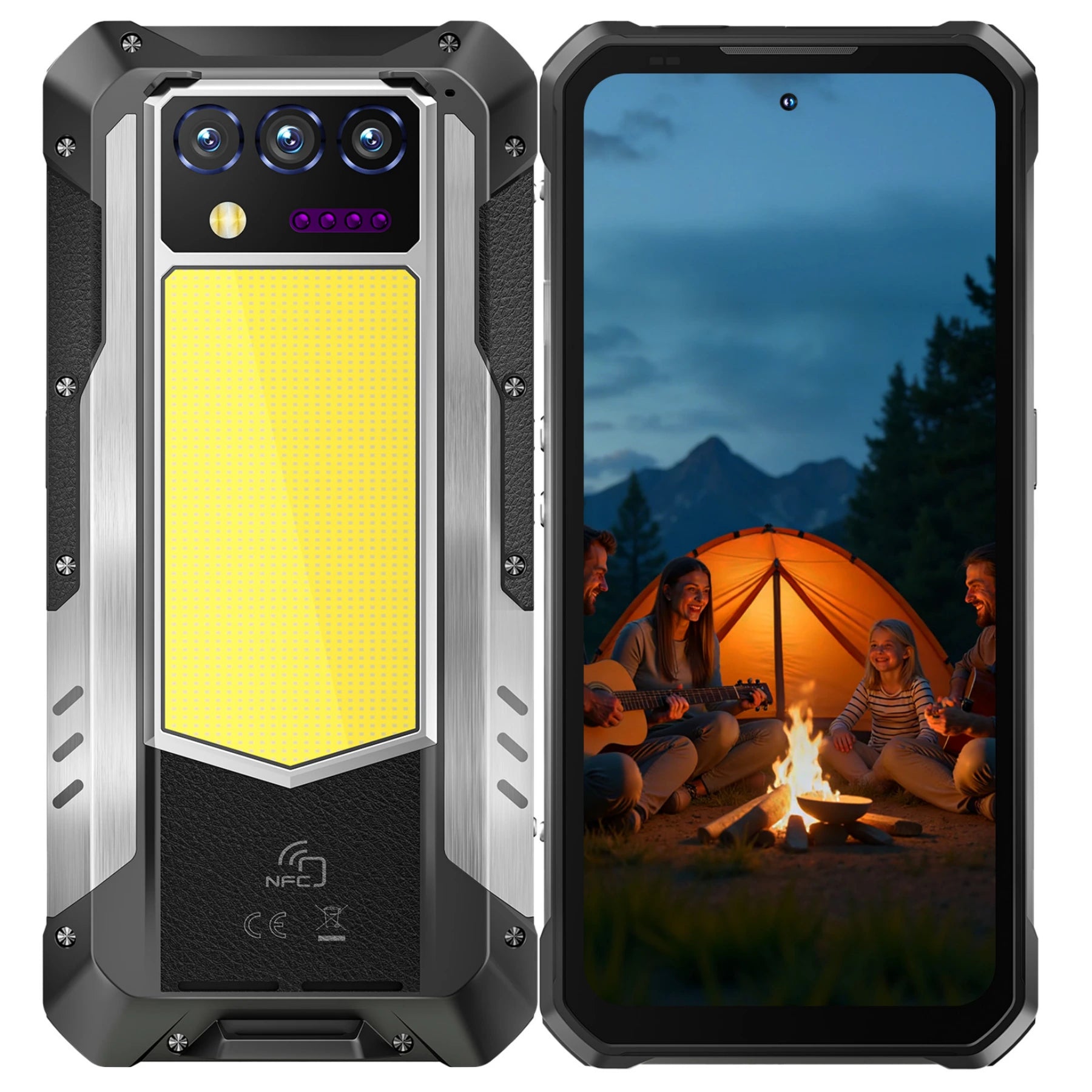
OUKITEL rugged phones are engineered with:
- IP68/IP69K waterproof protection
- MIL-STD-810H shock resistance
- Large batteries
- Advanced camera systems
- Extra utilities like camping lights, thermal imaging, or loudspeakers
To support these features, rugged phones include additional background apps such as:
- Sensor management tools
- Environmental calibration software
- Hardware monitoring utilities
- Battery optimization services
- Thermal imaging processors
- Loudspeaker amplification drivers
These system applications are necessary but typically hidden to avoid clutter.
The key difference?
These apps are safe, manufacturer-managed, and essential for rugged functionality.
How to Find Hidden Apps on Android
Below are the most reliable methods to uncover hidden apps, whether you’re using a rugged OUKITEL phone or any Android model.
Check the “All Apps” List in Settings
This reveals every app installed visible or hidden.
Steps:
- Open Settings
- Tap Apps or Apps & Notifications
- Tap See all apps
What to look for
- Apps you don’t recognize
- Apps marked Disabled
- Apps with very generic names
Tip: Tap any app → check App info to understand what it supports.
Check “Special App Access”
Some hidden apps appear under special permissions.
Go to:
Settings > Apps > Special Access
Look under categories like:
- Device admin apps
- Install unknown apps
- Notification access
- Usage access
- Display over other apps
- Modify system settings
This is the fastest way to see which apps have extended access.
View Hidden Apps in the App Drawer
Some launchers allow hiding apps.
On most Android devices:
- Open the app drawer
- Tap the three dots (menu)
- Look for:
- Hidden apps
- Hide apps
- Home settings
If the setting exists, it will show any apps intentionally hidden by the user.
Battery usage (Spot background-heavy apps)
Go to:
Settings → Battery → Battery usage
Look for:
- Apps using power in the background
- Anything you don’t actively use but appears frequently
This helps keep long sessions stable—especially on rugged phones used all day.
Work Profile apps (If you use a managed device)
What to check
- App drawer: a separate Work tab (common)
- Settings: Work Profile section (name varies by device)
Work apps may not mix with personal apps, so check both areas.
Check Apps Running in the Background
Go to:
Settings → Battery → Battery Usage
Look for:
- Apps consuming power unexpectedly
- Background activity by unknown apps
This is useful on rugged phones with large batteries—if something drains power unexpectedly, it may be a hidden process.
Use Google Play Protect
Steps:
- Open Google Play Store
- Tap your profile icon
- Tap Play Protect
- Run a manual scan
Useful for work deployments where you want app installs to stay consistent.
What to Do When You See an App You Don’t Recognize
Use this simple flow:
- Open App info
- Check Permissions (only keep what’s needed)
- If it’s optional for your setup, Disable (or Uninstall if available)
- If it’s a work device, follow your team’s deployment rules (some apps may be managed)
Real-World Scenarios (WP55 Ultra / WP60)
Field inspection (utilities, maintenance, on-site checks)
- Before a long inspection day, use See all apps to confirm your toolset is consistent.
- Battery usage to make sure nothing is quietly consuming resources during long sessions.
- On WP55 Ultra, thermal-related utilities may appear as system components—this is normal for feature support.
Outdoor work (hiking, camping, field service)
- Use Special app access to quickly review which apps can run in the background.
- If you switch between personal use and work tasks, check Work Profile so your app lists stay organized.
- Large batteries help, but keeping background activity tidy makes long outings smoother.
Warehouse & logistics (scanning, shift work, fleet devices)
- For shared devices, a quick Settings → Apps → See all apps check helps keep devices uniform.
- Use Work Profile to separate job tools from personal apps on managed devices.
- Run Play Protect periodically as a lightweight “keep-things-clean” step.
Frequently Asked Questions
What does “hidden apps on this device” mean?
It refers to apps installed on your phone that do not appear in the normal app drawer.
Are hidden apps always dangerous?
No. Many are system services or hardware tools.
Can rugged phones have hidden apps?
Yes, but most are manufacturer utilities for durability and hardware features.
How do I find hidden apps?
Check Settings → Apps → See All Apps, Special Access, Device Admin, or Safe Mode.
How do hidden apps affect battery life?
Background processes can drain power especially noticeable on rugged phones with large batteries.
Conclusion
Hidden apps are often just system services, Work Profile tools, or feature utilities. The key is knowing where to look so your device stays organized and reliable.
If you’re using a rugged phone for field work, outdoor tasks, or warehouse operations, these checks take only a few minutes and help keep daily use smooth.
Explore OUKITEL rugged phones like WP55 Ultra and WP60 if you want a field-ready Android 15 experience built for long sessions and practical workflows.




Leave a comment
Your email address will not be published. Required fields are marked *