



As we move through 2026, Artificial Intelligence has shifted from being a "cool extra" to the beating heart of our mobile experience. Whether you're using a flagship, or a durable beast from the OUKITEL rugged phones collection, AI is there—but it isn't always obvious where to find it.
If you've ever asked, "where is AI on my phone?," you aren't alone. AI features are often tucked away in "Advanced Features." Intelligence" menus or specific apps like the camera and gallery. This guide will show you exactly how to find and enable the most powerful AI tools available today.
The Importance of AI on Your Phone
Artificial Intelligence is no longer just a novelty—it's the backbone of a modern smartphone experience, AI transforms your device from a simple communication tool into a smart assistant. photographer, and personal organizer. Here’s why it matters:
- Enhanced Productivity – AI helps automate routine tasks, from summarizing emails and meeting notes to suggesting replies, so you spend less time managing your phone and more time being productive.
- Battery and Performance Optimization – Features like Adaptive Battery and AI memory management intelligently monitor usage patterns, putting unused apps to sleep and expanding virtual RAM when needed. This makes your phone last longer and stay fast, even during heavy multitasking.
- Personalized Assistance – From Intelligence predicting what apps you might need next to Gemini providing conversational help, AI adapts to your habits and preferences. creating a device that feels uniquely yours.
- Safety and Convenience – On rugged devices, AI can help detect outdoor conditions. optimize performance under extreme temperatures, and even assist with emergency tasks making your phone a dependable companion in any situation.
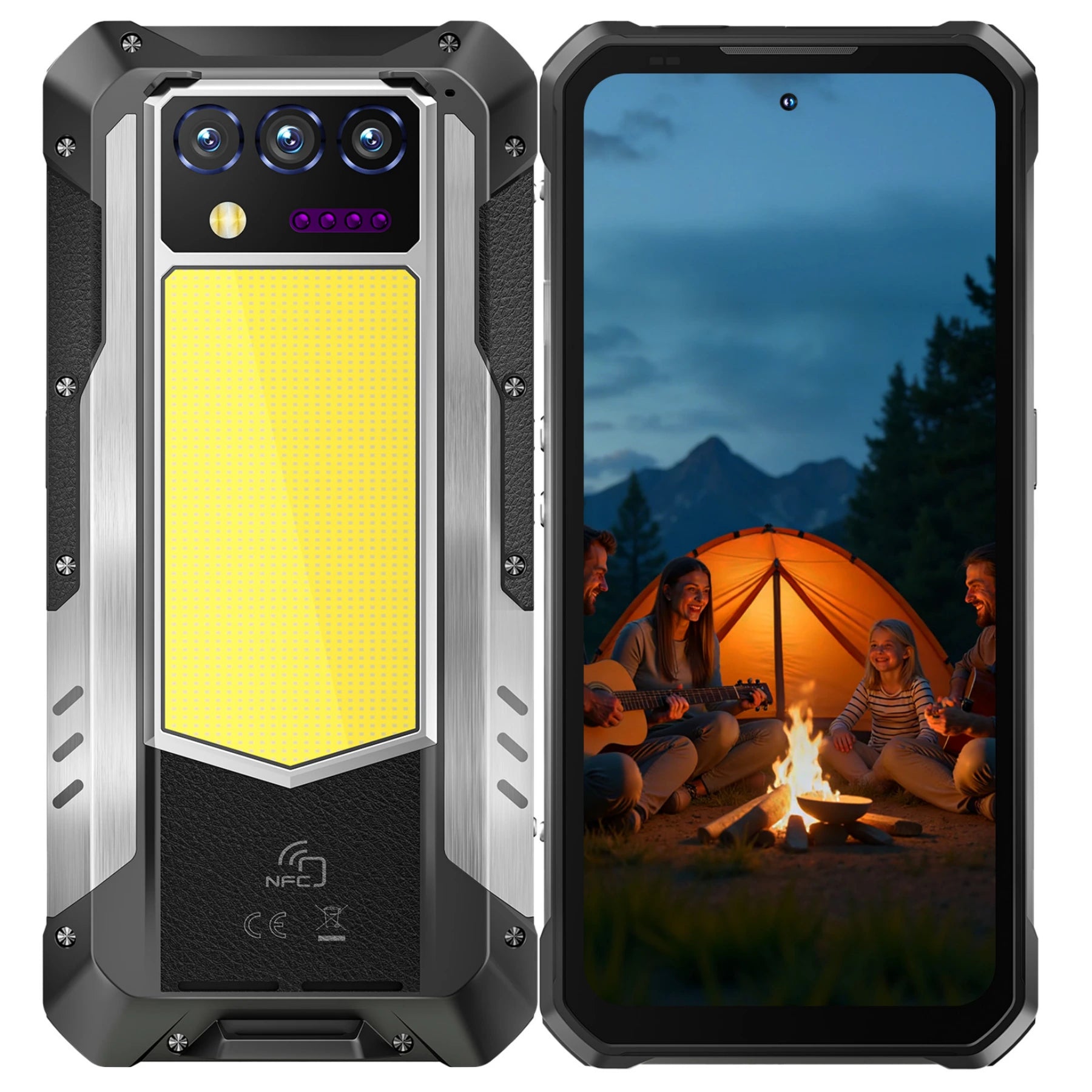
In short, AI isn’t just a feature. It’s a core part of the mobile experience that improves efficiency, creativity, and reliability across all devices, from flagship smartphones to rugged explorers like the OUKITEL WP60. While Samsung's AI helps you edit photos, OUKITEL's AI helps you survive. The WP60 uses AI algorithms to calibrate its compass and GPS sensors in interference-heavy environments (like construction sites), ensuring you never lose your way.
Where Is Galaxy AI on My Phone?

led the charge with "Galaxy AI," and in 2026, it is more integrated than ever into One UI 8.0.
How to Enable Galaxy AI:
If you are wondering where is AI on my Samsung phone, follow these steps:
- Open Settings.
- Tap on Galaxy AI (or Advanced Features > Advanced Intelligence on older software).
- Here, you will find a list of "Agents" and tools:
- Live Translate: Enables real-time voice translation during calls.
- Writing Assist: Found inside the Samsung Keyboard to change your tone or fix grammar.
- Note Assist: Inside Samsung Notes to summarize long meetings.
- Generative Edit: Found in the Gallery app by tapping the "Star" icon on any photo.
Pro Tip: To quickly find where Galaxy AI is on my phone, just hold down the Home button or the navigation bar to trigger Circle to Search, which is now the default AI search method for Samsung.
AI on Rugged Phones: OUKITEL WP60 and Beyond
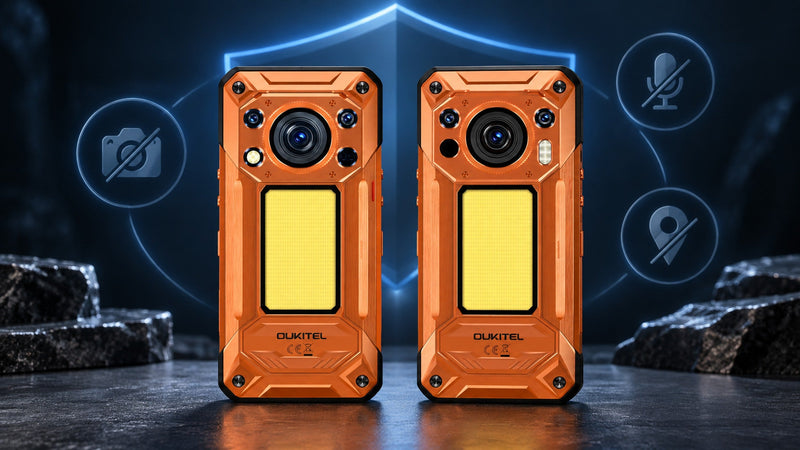
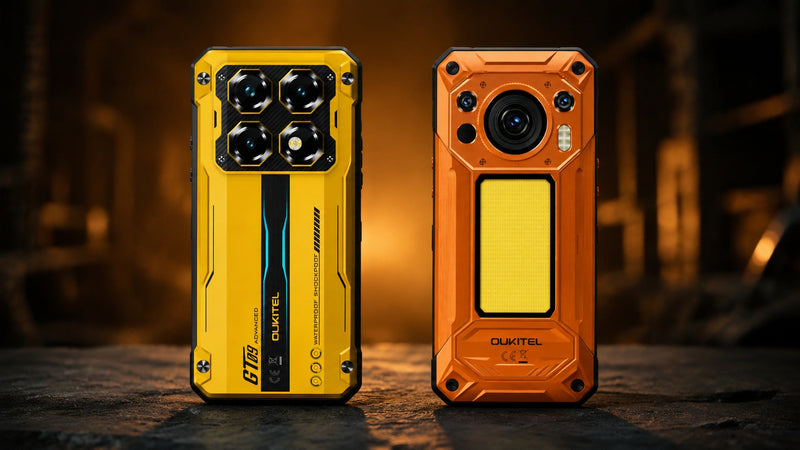
Rugged phones like the OUKITEL WP60 are built for extreme environments—construction sites, outdoor adventures, industrial fields—where regular Android phones might fail. Their reinforced frames, water and dust resistance, shockproof screens, and massive batteries aren’t just for durability—they enable AI to work in ways standard smartphones can’t.
Unlike mainstream Android devices, which often focus on entertainment or productivity, AI on rugged phones enhances real-world usability:
Practical AI Applications on Rugged Devices
-
AI-Enhanced Camera (WP60, C62/C68 Plus)
The camera automatically adjusts for challenging environments—low light, underwater conditions, or wide landscapes—so you capture sharp, usable images even in harsh conditions. - Specialized AI Camera Features (C62/C68 Plus)
- AI Gesture Shutter: Take hands-free photos using simple hand gestures—perfect for outdoor or industrial photography.
- AI Smile Capture: The camera detects smiles and captures the moment automatically, ensuring authentic, lively shots.
- These features go beyond standard auto-focus and scene detection, turning the camera into a smart assistant for both professional and personal use.
-
AI Power Management
Massive batteries (up to 10,000mAh) combined with AI optimization put unused apps to sleep, allowing multi-day usage without charging—critical when you’re off the grid or in remote locations. -
Gemini AI Integration
A clean Android interface with voice-driven commands helps with navigation, translation, and field-specific calculations, making rugged devices indispensable for professionals and adventurers.
Where Is Gemini AI on My Android Phone?

Google has largely replaced the classic Google Assistant with Gemini. If you are asking where Gemini AI is on my phone, it is likely already living inside your Google app.
Enabling Gemini:
- Open the Google app.
- Tap your Profile Picture > Settings > Google Assistant.
- Tap Digital Assistants from Google and select Gemini.
- To trigger it, say "Hey Google" or long-press the power button.
For those looking for AI mode on my phone specifically for search, check your Google Chrome or Google Search app. There is now an "AI Mode" toggle in the Search Labs section that provides deep-dive, conversational research results rather than just a list of links.
AI on Rugged Phones: OUKITEL WP60 and Beyond
Rugged phones have evolved, Devices like the OUKITEL WP60 5G now use AI to solve real-world problems for outdoor workers and explorers.
Where to Find AI on Rugged Devices:
- AI-Enhanced Camera: Open the Camera app on your OUKITEL. You will see an "AI" icon at the top. When enabled, the phone uses scene recognition to automatically adjust settings for night. macro, or underwater photography.
- AI Power Management: Rugged phones with massive 10,000mAh batteries use AI background monitoring to put unused apps to sleep. extending battery life to 3–4 days.
- Gemini Integration: Since OUKITEL runs a clean version of Android 15/16, you can follow the same steps as a Pixel to enable Gemini as your primary assistant.
Enabling AI Camera Modes: Capturing Smarter Images
One of the most common places people look for AI is in the camera. On high-performance devices like the OUKITEL WP60, the 108MP main camera relies on AI to process massive amounts of data instantly.
How to Toggle AI Camera Mode:
- Open the Camera App: Look for the "AI" icon (usually at the top of the viewfinder).
- Enable AI Scene Detection: When turned on, the icon often changes color or displays text like "Landscape," "Food," or "Night" as it identifies the subject.
- Beauty and Portrait Modes: These are often categorized under AI. On OUKITEL devices, look for the "Beauty" or "Portrait" tab. The AI uses depth sensors to create a professional "bokeh" (blurred background) effect, even in rugged outdoor settings.
- Google Lens Integration: Most modern Android phones have Google Lens built directly into the camera. Tap the small square-and-circle icon to use AI for translating real-world text. identifying plants, or scanning QR codes instantly.
AI Battery & Performance: The Invisible Assistant
Not all AI features are about chatting or photos. On rugged phones, AI works silently in the background to ensure your device survives extreme conditions. This is often referred to as Adaptive Intelligence.
Where to Find Performance AI:
- Adaptive Battery: On Android 15/16, go to Settings > Battery > Adaptive Preferences. Enabling "Adaptive Battery" allows the AI to learn your usage patterns. It will limit power to apps you rarely use while ensuring your navigation and emergency tools stay responsive.
- Smart Assistant Menu: Many OUKITEL models include a "Smart Assistant" menu in Settings. Here, you can find gesture controls and AI-driven shortcut settings that make the phone easier to use with one hand or while wearing gloves.
- RAM Expansion (Virtual RAM): The WP60 uses AI memory management to expand its 16GB of physical RAM up to 48GB. You can find this under Settings > Memory Expansion. The AI intelligently swaps data between the ROM and RAM to prevent lag during heavy multitasking.
Summary Table: AI Locations by Brand
|
Brand |
Primary AI Name |
Key Feature |
|
OUKITEL |
AI Camera / Gemini |
Scene Recognition. Performance AI |
|
Samsung |
Galaxy AI |
Circle to Search (condensed focus) |
Conclusion
Finding where the AI is on my phone is the first step to unlocking a more productive mobile experience. From the sleek AI-driven interface to the rugged, AI-enhanced durability of an OUKITEL, these tools are designed to make your life easier.
If you are looking for a device that combines the smartest AI with the toughest hardware, explore the latest OUKITEL rugged smartphones today.
Frequently Asked Questions
Why can't I find AI in my settings?
Your phone may need a software update. Most AI features require at least Android 14/15 or 18.1. Go to Settings > Software Update to check for the latest version.
Does using AI drain my battery faster?
Generative AI (like creating images or summarizing text) can be power-intensive. However, AI features like "Adaptive Battery" on rugged phones are actually designed to save battery life.
Is Gemini the same as "My AI"?
No. "My AI" is specifically the chatbot inside Snapchat. If you are looking for where my AI is on my phone and you're a Snapchat user, it is pinned to the top of your Chat feed. For system-level help, use Gemini or Siri.
How do I turn off AI mode?
If you find the AI features intrusive, go back to the same "Advanced Intelligence" or "Gemini" settings mentioned above and toggle the features off. On Android, you can switch back to the "Legacy Google Assistant" if you prefer.



Leave a comment
Your email address will not be published. Required fields are marked *