


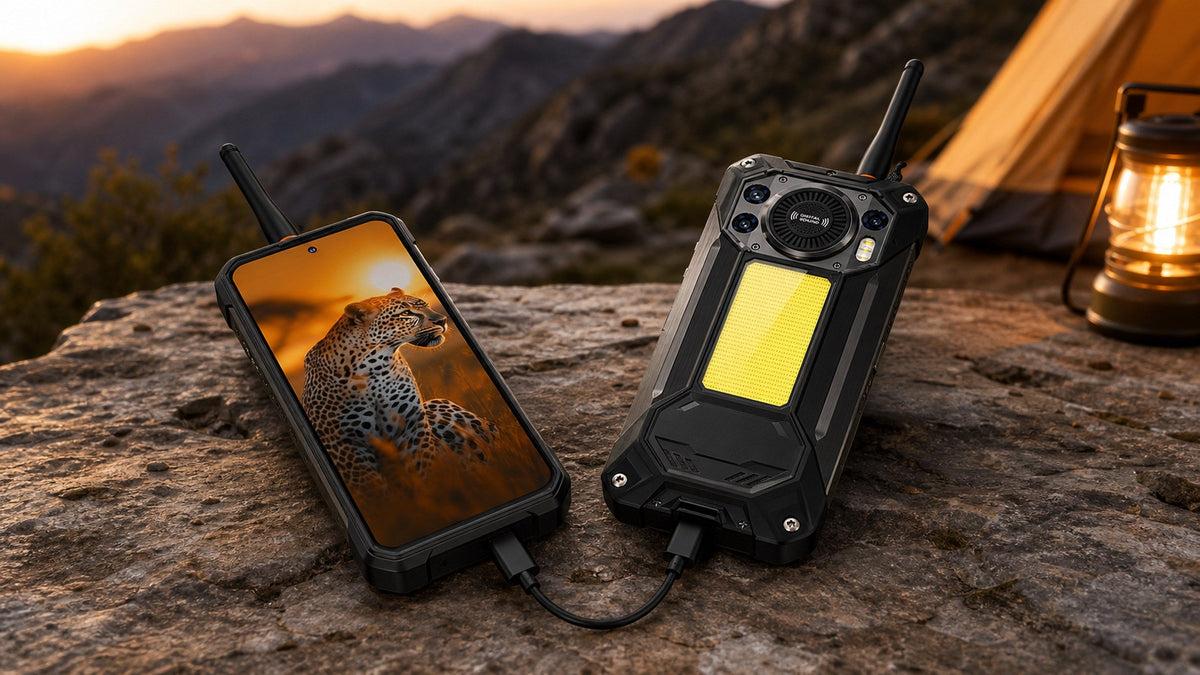
You can charge one phone with another if the phone supplying power supports wired reverse charging or wireless power sharing. For a wired connection, connect the devices with a compatible USB cable and confirm that power is flowing toward the low-battery phone. For wireless charging, enable power sharing on the source phone and place the receiving device against its charging coil.
Phone-to-phone charging is most useful for an emergency top-up. It can provide enough power to make a call, display a ticket, access an offline map, or send a location update when a wall outlet is unavailable. However, the connection is usually less efficient than charging from a wall adapter, and compatibility varies by phone, cable, and charging protocol.
Can One Phone Charge Another Phone?
A phone can charge another device only if it is designed to send power rather than merely receive it. This feature is commonly called:
- Reverse charging
- Battery sharing
- Power sharing
- Reverse wireless charging
- Wireless PowerShare
- OTG reverse charging
Wired reverse charging sends power through a USB connection. Wireless power sharing sends energy through compatible charging coils without a cable. Supporting one method does not mean that a phone supports the other.
USB-C connectors are reversible physically, but the connector shape alone does not determine which phone supplies power. Compatible devices negotiate their roles as the power source and power receiver. The USB Implementers Forum describes USB Type-C systems as supporting source, sink, and dual-role power configurations, with some devices able to change power direction through power-role negotiation. USB-IF explains these power roles in its USB Type-C system overview.
Before connecting two phones, check the source phone’s specifications or settings for explicit reverse-charging support. Do not assume that every USB-C phone can send power.
Check Both Phones Before You Start
A quick compatibility check prevents most phone-to-phone charging problems.
| Check | Source phone | Receiving phone |
|---|---|---|
| Battery level | Should have enough power to share | Usually the lower-battery device |
| Charging feature | Must support wired or wireless reverse charging | Must accept the selected connection |
| Port or coil | Clean, dry, and undamaged | Clean, dry, and undamaged |
| Cable | Must support the required connection | Connector must fit securely |
| Temperature | Should feel normal, not unusually hot | Should feel normal, not unusually hot |
Confirm Whether the Source Phone Supports Reverse Charging
Search the source phone’s settings for terms such as “reverse charging,” “battery sharing,” “OTG,” or “wireless power sharing.” The exact name and menu location depend on the manufacturer and software version.
You can also check the official product page or user manual. Look for a specific statement that the phone supports reverse charging. A large battery does not automatically mean the feature is available.
Before sharing power, consider how much battery the source phone must retain. If it contains your maps, emergency contacts, boarding pass, work credentials, or authentication apps, do not drain it simply to bring another device to a full charge.
Identify Whether the Connection Is Wired or Wireless
Use wired reverse charging when the source phone sends power through its charging port. Depending on the two devices, this may require:
- A USB-C-to-USB-C cable
- A USB-C cable with a compatible adapter
- An OTG adapter and the receiving device’s charging cable
Use wireless power sharing only when the source phone explicitly supports reverse wireless charging and the receiving phone supports compatible wireless charging.
A phone that can receive wireless power is not necessarily able to send it. Likewise, a phone may offer wired reverse charging without containing a wireless charging coil.
If you need more background before following the steps below, read OUKITEL’s guide to what reverse charging is and how it works.
How to Charge a Phone With Another Phone Using a Cable

Wired charging is generally easier to position and maintain than wireless power sharing. It is also practical when the receiving phone does not support wireless charging.
Connect the Phones With a Compatible USB-C Cable
Follow these steps:
- Check that both charging ports are clean and completely dry.
- Unlock the phone that will provide power.
- Enable reverse charging or OTG power output if the phone requires manual activation.
- Connect the two phones with a compatible cable.
- Check the receiving phone for its charging symbol.
- Wait several seconds before changing any connection settings.
- Disconnect the cable when the receiving phone has enough power.
Do not force a connector into a port or use a loose, bent, frayed, or heat-damaged cable. If either phone was recently exposed to water, wait until the port is fully dry before connecting it.
USB Power Delivery allows compatible equipment to manage power over a USB connection, but the maximum capability of the USB standard does not represent the output of a particular phone. According to the USB-IF overview of USB Power Delivery, power direction is not necessarily fixed, and compatible devices can manage which product supplies power. Actual phone-to-phone output remains limited by both devices and the cable.
Enable Reverse Charging and Confirm the Power Direction
Some phones begin supplying power automatically. Others display a USB notification that lets you choose which connected device controls the connection or provides power.
After connecting the phones, confirm three things:
- The low-battery phone displays a charging indicator.
- The intended source phone shows that power is being shared.
- The source phone’s battery percentage decreases—not the receiving phone’s.
If the wrong phone starts losing power, open the USB connection notification and look for an option related to charging the connected device. If no such option appears, disconnect the cable and confirm that the intended source phone supports power output.
Do not repeatedly reverse the charging direction without understanding the prompts. The wording varies between Android versions, and an option related to USB data control may not be the same as a power-role setting.
How to Charge One Phone From Another Wirelessly
Wireless power sharing avoids a cable, but it requires compatible hardware in both devices and careful alignment.
Turn On Wireless Power Sharing
Open the source phone’s battery or connected-device settings and enable its wireless power-sharing feature. Manufacturers may place this option in Quick Settings, Battery, Device Care, or a similarly named menu.
Remove thick cases, magnetic mounts, wallets, metal plates, and other accessories that may interfere with the charging coils. Keep cards with magnetic strips away from the charging area.
Place the source phone face down on a stable, dry surface. Position the receiving phone against the back of the source device. The correct point is usually near the center, although coil placement varies.
Align the Devices and Keep the Connection Stable
Watch the receiving phone for a charging indicator. If charging does not begin, move it slightly rather than repeatedly lifting and replacing it.
Wireless power sharing may stop when:
- The phones move out of alignment.
- A case creates too much distance between the coils.
- The source battery falls below its configured limit.
- One of the devices becomes too warm.
- The receiving phone does not support the required wireless standard.
- A camera bump prevents the phones from lying close enough together.
Wireless transfer naturally loses some energy as heat. Use it for convenient top-ups, not as the most efficient way to move a large amount of power between two phones.
What to Do When Phone-to-Phone Charging Does Not Work

Most failures come from incompatible hardware, the wrong power direction, a damaged cable, blocked charging coils, or a software setting.
Fix the Wrong Charging Direction or an Unrecognized Device
If the high-battery phone starts receiving power instead of supplying it:
- Disconnect the phones.
- Enable reverse charging on the intended source device.
- Reconnect the cable.
- Open the USB notification and review the available power options.
- Try a different compatible cable if the direction cannot be changed.
If neither phone recognizes the connection, restart both devices and inspect the ports for lint or damage. Do not insert metal tools into a charging port. Compressed debris can be difficult to remove safely, so contact an authorized repair provider when the port cannot be cleaned without force.
For wireless charging, verify that the receiving phone can accept wireless power. Then remove the cases and reposition the coils.
Check the Cable, Battery Level, Temperature, and Settings
Use this order to narrow down the problem:
- Confirm reverse-charging support in the source phone’s official specifications.
- Check whether the feature has been enabled.
- Verify that the source battery is above any automatic cutoff level.
- Test with a known-compatible cable.
- Inspect both ports without inserting tools.
- Allow warm devices to cool before trying again.
- Restart the phones and check for system updates.
- Test the receiving phone with a normal charger.
If the receiving phone cannot charge from a regular adapter, the problem may be its port, battery, or charging system rather than reverse charging.
A connection that repeatedly starts and stops may indicate a loose cable, unstable port, temperature limit, or compatibility problem. Stop testing if a port smells burnt, shows discoloration, produces a crackling sound, or becomes unusually hot.
Use Reverse Charging Without Draining Your Main Phone

Reverse charging transfers stored energy from one battery to another, and some energy is lost during the process. The source phone will therefore lose more battery capacity than the receiving phone gains.
Monitor Heat and the Source Phone’s Remaining Battery
Check both devices periodically. Mild warmth can occur during charging, especially with wireless transfer, but excessive heat is a reason to disconnect them.
Avoid phone-to-phone charging:
- In direct sunlight
- Inside a hot vehicle
- Under bedding or clothing
- While either device is wet
- When a battery is swollen or physically damaged
- Near combustible materials
- When the source phone is already overheating
Set a practical stopping point before you begin. For example, preserve enough energy in the source phone for navigation, calls, authentication, or emergency alerts.
Treat Phone-to-Phone Charging as a Short-Term Power Solution
A brief top-up is often more useful than trying to fill the receiving phone completely. Charge it enough to complete the immediate task, then disconnect the devices.
Reverse charging is particularly useful when a secondary phone or small accessory runs low during fieldwork, travel, camping, or a power outage. For trips where several devices need repeated charging, a reputable power bank or another dedicated power source may still be more appropriate. OUKITEL’s comparison of long-battery phones and power banks explains the practical differences.
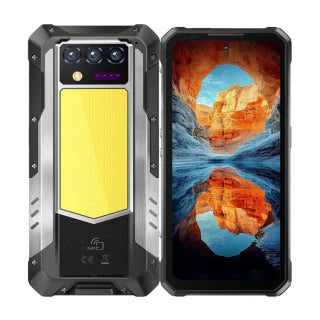
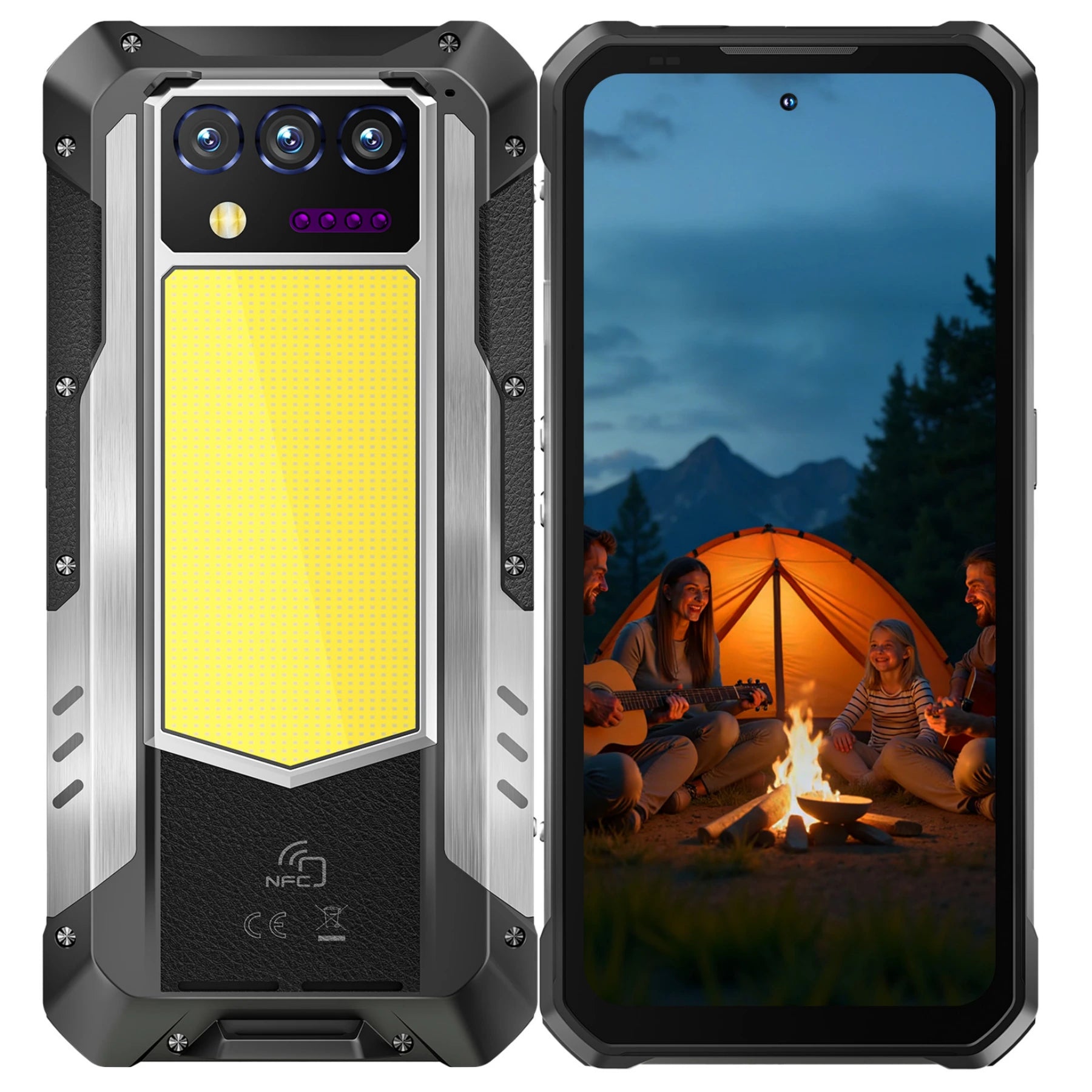
The OUKITEL WP61 Plus provides a relevant example. Its verified product specifications list a 20,000mAh battery, 45W input charging, and reverse-charging support. During a delayed return, remote work shift, or temporary outage, that large reserve can provide an emergency top-up for another compatible device while leaving power available for the primary phone.
The product page does not specify a universal reverse-charging speed or compatibility with every receiving device. Users should therefore confirm the cable, watch the power direction, and stop if either device becomes unusually warm. Those comparing other endurance-focused devices can also review the broader OUKITEL rugged phone collection, checking each model’s individual charging specifications before purchase.
FAQ
Can You Charge Earbuds or a Smartwatch With a Phone?
Yes, if the phone supports reverse charging and the accessory accepts the available wired or wireless connection. Confirm compatibility before connecting them because charging methods vary between accessories.
Does Reverse Charging Work When the Source Phone Is Turned Off?
Usually not. Reverse charging commonly depends on the source phone’s power-management system and software settings. Behavior varies by model, so check the official manual.
Can Phone-to-Phone Charging Transfer Data at the Same Time?
It may, but power and data roles are separate. A USB connection can provide power without allowing file transfer. Review the USB notification and do not grant data access unless you trust the connected device.
Why Does Reverse Charging Stop Before the Other Phone Is Full?
The source phone may have reached its battery cutoff, detected excessive heat, lost its wireless alignment, or ended the connection because of a cable or compatibility issue. Check both batteries, temperatures, settings, and connections.
Conclusion
To charge one phone with another, first confirm that the source device supports reverse charging. Use a compatible cable for wired power sharing or enable wireless power sharing when both phones support it. After connecting the devices, verify the charging direction and monitor their temperature and battery levels.
Phone-to-phone charging works best as an emergency top-up rather than a replacement for regular charging. Preserve enough battery in the source phone for essential tasks, use undamaged equipment, and disconnect the devices if the connection becomes unstable or unusually hot.


Leave a comment
Your email address will not be published. Required fields are marked *