


Face recognition (Face Unlock or Face ID) is one of the fastest and most convenient ways to unlock your smartphone. Whether you’re using an a rugged Android smartphone like the OUKITEL WP60, WP56, WP200 Pro, WP210, WP55 Ultra, you expect facial recognition to work instantly.
So when it suddenly stops working or works inconsistently the experience becomes frustrating and confusing.
If you’ve been asking:
- Why is my face recognition not working?
- Why is Face ID not working after update?
- Why does face unlock fail on my Android / rugged phone?
This complete guide explains the 12 most common reasons facial recognition fails and how to fix each one. Rugged phones are also included, as people often use them in harsh outdoor conditions where face unlock can struggle.
Why Face Recognition Stops Working: The 12 Most Common Causes

Face recognition on modern smartphones is reliable but not perfect. Android depend on several factors:
- Camera quality
- Lighting
- Infrared sensors
- Face data accuracy
- Software calibration
- Security rules
When one factor is off, face unlock may fail.
Let’s break down the most common reasons.
Poor Lighting or Harsh Lighting Conditions
Face recognition works best under balanced lighting.
It may fail when:
- It’s too dark
- You’re in intense sunlight
- The environment has heavy shadows
- A bright light source is behind you
Why this happens:
The camera cannot detect enough detail to match your stored face data.
Fix:
- Face the light
- Move indoors
- Avoid strong backlight
- Clean your screen/camera (rugged phones often get dusty outdoors)
OUKITEL rugged phones use IR-assisted face unlock, which helps in dim environments, but extreme lighting still affects accuracy.
Dirty or Damaged Front Camera
On rugged phones used outdoors, dust buildup is common.
If your camera is:
- Foggy
- Covered with dirt
- Scratched
- Smudged with fingerprints
Face unlock may not work properly.
Fix:
- Wipe the front camera with a microfiber cloth
- Ensure the screen protector isn’t obstructing the sensor
- Remove bubbles under protective glass
Significant Changes in Your Appearance
Face recognition adapts over time but drastic changes may cause issues:
Examples:
- Wearing sunglasses
- Thick makeup
- New hairstyle or beard
- Face mask (especially in cold weather)
- Wearing a hat or helmet
- Aging effects
Fix:
- Re-register your face
- Register an "alternate appearance"
- Add multiple angles if allowed
Rugged-phone users (construction helmets, goggles, dust masks) often face this issue more frequently.
Wearing a Mask, Scarf, or Face Covering
- Eyes
- Nose
- Upper facial structure
Masks block key biometric points.
Fix:
- Remove mask
- Use fingerprint unlock when masked (OUKITEL rugged models include fingerprint + face unlock)
Screen Protector Interference
Some screen protectors especially thick or low-quality ones block:
- Infrared sensors
- Front-facing camera
- Light-detection sensors
This causes face recognition failure.
Fix:
- Replace protector with a high-quality, sensor-safe version
- Ensure no dust is trapped under the protector
OUKITEL devices with under-screen sensors (WP210, WP200 Pro) require clear protectors for best performance.
Software Bugs After Updates
Android occasionally release updates that impact biometrics.
Signs:
- Face ID stopped working after system update
- Face unlock works intermittently
- Camera calibration fails
Fix:
- Restart phone
- Check for bug-fix updates
- Reset face data and re-register
- Update all apps (Google Play Services affects face unlock on Android)
Face Unlock Not Properly Set Up
If your original scan was done:
- In poor light
- At an odd angle
- Too quickly
- With partial coverage
Your phone may struggle to match your face.
Fix:
Re-register with these tips:
- Look straight at the camera
- Rotate your head slightly
- Use good indoor lighting
- Remove glasses if needed
Your Phone Is Too Close or Too Far
Optimal distance matters.
Face ID usually works best at:
- 20–60 cm on Android phones
If the phone is:
- Too close → camera cannot map your face
- Too far → insufficient detail
Fix:
Adjust distance until it works consistently.
Glare or Reflections on the Screen
Outdoor use can create reflections that disrupt facial scanning.
For rugged phones used under sunlight, glare is a common issue.
Fix:
- Tilt the phone slightly
- Shade the screen with your hand
- Step out of direct sunlight
Hardware Damage
A drop or impact (common with rugged phone environments) can affect:
- Proximity sensor
- Camera lens
- IR emitter
Even rugged phones can face sensor misalignment after severe impacts.
Fix:
- Test camera apps
- Restart device
- If hardware damage is suspected → contact support
Phone Orientation Issues
Face unlock may fail when:
- Your phone is upside down
- You're lying down
- You're in motion (running, driving, biking)
Fix:
Hold the device upright and steady.
Security Restrictions Activated
Some situations trigger security lockouts:
- Too many failed face attempts
- Phone rebooted
- Phone was locked more than 48 hours
- New update installed
- Biometric data was changed
- Screen lock settings modified
In these cases, you must use your PIN, pattern, or fingerprint.
Face Recognition Issues on Android & Rugged Phones
Android uses several face-recognition types:
- Camera-based 2D scanning (standard)
- IR-assisted scanning (higher security)
- Depth-mapping face unlock (premium devices)
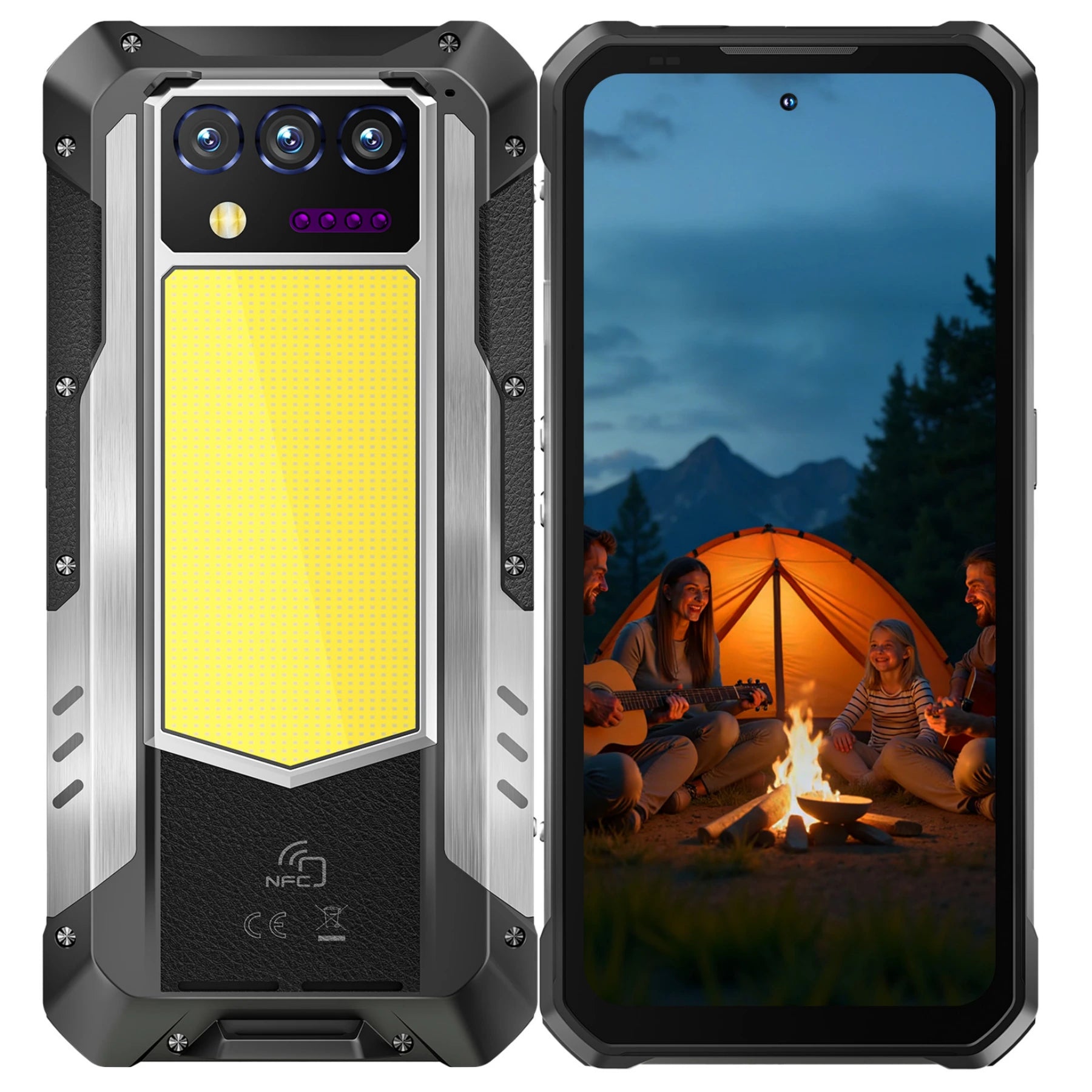
Rugged phones from OUKITEL typically use:
- AI-enhanced face unlock
- IR support for low-light conditions
- Dual biometrics: fingerprint + face unlock
Common rugged-phone issues:
Dust on the camera
Mud or sweat blocking view
Sun glare at outdoor job sites
Wearing hard hats or goggles
Cold-weather face coverings
Fix:
- Clean camera
- Re-register face
- Use fingerprint unlock in tough conditions
OUKITEL rugged models always include a fingerprint alternative.
Advanced Solutions (When Basic Fixes Don’t Work)
If face recognition still fails:
Reset Face Data
Settings → Security → Face Unlock → Delete & Re-register
Reset All Settings
Does NOT delete your files.
Resets:
- Network
- Permissions
- Biometrics
- UI settings
Update All Google Components (Android)
Especially:
- Google Play Services
- Google Services Framework
- Android System WebView
Factory Reset (Last Resort)
Fixes deep software conflicts.
When Face Recognition Should NOT Be Used
Face unlock is convenient, but not always ideal.
Avoid using it when:
- Wearing full protective gear
- Working in dusty or chemical environments
- Frequently in bright sunlight
- Doing high-security tasks (bank apps prefer fingerprints)
This is why rugged phones like the OUKITEL WP210 include both fingerprint + face unlock, giving you flexibility.
Frequently Asked Questions
Why is my face recognition not working?
Common causes include poor lighting, dirty camera, software bugs, or incorrect face data.
Does face recognition work in the dark?
Yes if your device uses infrared scanning. Most rugged phones and modern smartphones do.
Can a cracked screen affect face unlock?
Yes. Cracks near the front camera disrupt scanning.
Why does my phone not recognize me sometimes?
Your appearance changed or the environment is affecting accuracy.
Is face recognition safe?
Yes modern devices use AI, IR, and depth mapping to avoid spoofing.
Conclusion
Face unlock is fast, safe, and convenient but sensitive to environment, lighting, and hardware conditions.
Whether you’re using Face ID or face unlock on rugged phones like the OUKITEL WP200 Pro, WP210, WP56, or WP55 Ultra, most issues can be solved with:
- Cleaning the camera
- Re-registering your face
- Adjusting lighting
- Removing obstructions
- Updating your system
- Restarting your phone
When working outdoors or on job sites, rugged devices offer the advantage of fingerprint unlock, ensuring reliable access even when face recognition struggles.



Leave a comment
Your email address will not be published. Required fields are marked *