
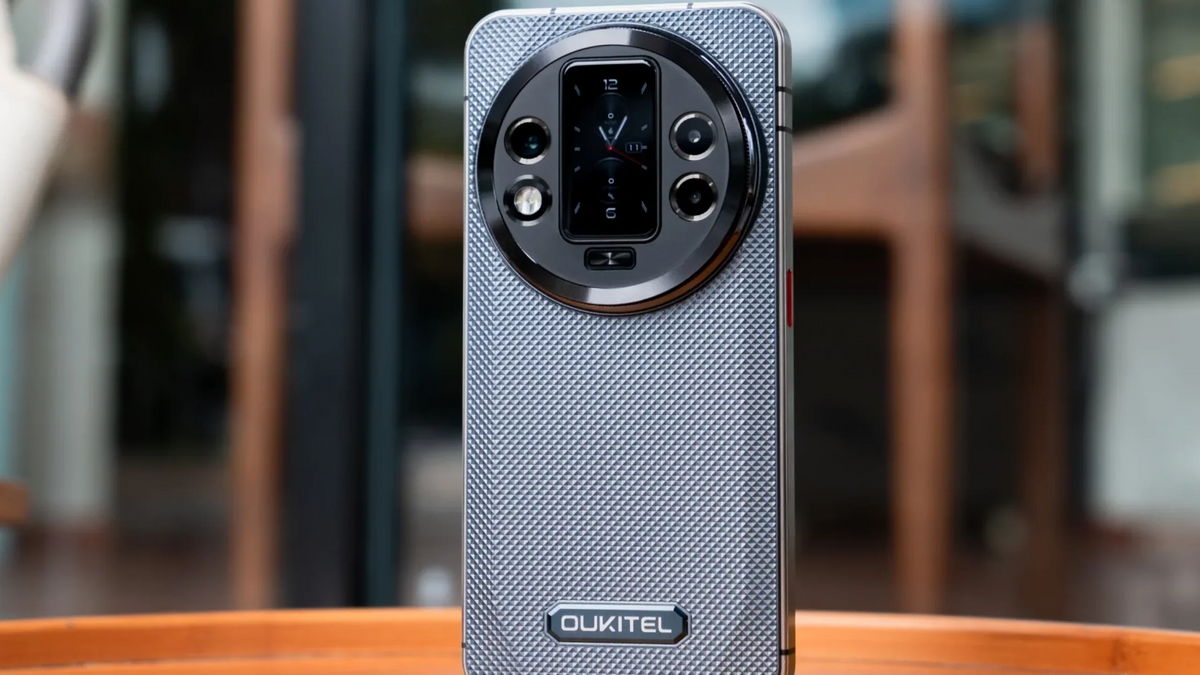
In 2026. Bluetooth is the invisible thread connecting our world. From syncing high-fidelity audio in a 2026 Honda CR-V to connecting industrial sensors on a construction site, we rely on this wireless protocol more than ever. However, rugged environments present unique challenges, Thicker phone casings, electromagnetic interference in factories, and complex in-car infotainment systems can all lead to the frustrating question: "Why isn't my bluetooth working?"
If you are using an OUKITEL rugged phone and facing dropouts or pairing failures, this guide will provide the high-tech solutions needed to get you back online.
Why Isn't My Bluetooth Working? Common 2026 Culprits

Bluetooth operates on the 2.4 GHz ISM band, a crowded frequency shared by Wi-Fi, microwaves, and industrial equipment. On a rugged device, three main factors usually cause issues:
- Android 16 Software Glitches: The 2026 rollout of Android 16 introduced a new Bluetooth stack. While faster, it has known "handshake" issues with older car firmware and certain industrial headsets.
- Physical Interference: The reinforced magnesium alloy and thickened rubber of rugged phones can slightly dampen signal range compared to glass-backed flagships.
- Corrupted Cache: System updates often leave behind old "bonding" data that prevents new connections from establishing a secure link.
Solving the "Why Isn't My Bluetooth Working in My Car" Crisis

The most common complaint in 2026 involves in-car connectivity, specifically with Wireless Android Auto.
The "Clean Slate" Method
If your car and phone refuse to talk, follow this specific sequence:
- Unpair Both Sides: Delete your phone from the car's infotainment screen and "Forget" the car in your phone's Bluetooth settings.
- Reset the Network: On your OUKITEL phone, go to Settings > System > Reset Options > Reset Wi-Fi. Mobile & Bluetooth.
- Toggle Android Auto: If you are using a 2026 vehicle, ensure "Wireless App Projection" is enabled in the car's connectivity menu.
- Re-pair while Parked: Bluetooth pairing often fails if the vehicle is in motion for safety reasons. Pair only when the engine is on but the car is in "Park."
Pro Tip for Android 16: Developer Options
If audio cuts out in your car, you may need to downgrade the protocol version:
- Go to Settings > About Phone > Tap "Build Number" 7 times.
- Go to Developer Options > Bluetooth AVRCP Version.
- Change it from the default (1.6) to 1.4. This older version is much more stable for 2020–2025 car models.
Industrial & Outdoor Use: Overcoming Interference

In a factory or on a construction site, "radio noise" is your biggest enemy. If you find why isn't my bluetooth working on my headset or specialized tools, try these environmental fixes:
- Adaptive Frequency Hopping (AFH): Modern OUKITEL phones use AFH to "hop" away from busy frequencies. If interference is high, toggle Airplane Mode on and off to force the Bluetooth module to scan for a cleaner channel.
- Remove Obstructions: Rugged phones are often kept in heavy-duty holsters or pockets. If you experience "skipping" audio, ensure there is a clear line of sight between the phone and your headset.
- Power Management: Rugged devices like the OUKITEL WP60 have aggressive battery-saving modes. Ensure "Battery Saver" is OFF, as it can throttle the Bluetooth radio's power output to save juice.
Overcoming "Multipoint" Switching Issues
In 2026, many headsets support Multipoint Bluetooth. allowing you to connect to two devices (like your OUKITEL phone and a laptop) simultaneously. However, Android 16 can sometimes get "confused" about which device should have audio priority.
- The Fix: If your phone won't take over the audio when a call comes in. go to Settings > Connected Devices and tap the gear icon for your headset. Look for the "Media Audio" and "Phone Calls" toggles. Turn them off and back on again to "re-seat" the priority.
- Developer Hack: If switching is consistently laggy. go to Developer Options and disable "Absolute Volume." This forces the phone and the headset to manage their own volume levels independently. which often resolves handshake delays.
Industrial PAwR: Connecting Thousands of Sensors
For those using OUKITEL rugged phones in smart factories or retail, the 2026 Bluetooth 5.4 update introduced PAwR (Periodic Advertising with Responses). This allows your phone to communicate bi-directionally with thousands of low-power devices, like Electronic Shelf Labels (ESL) or industrial temperature sensors. without a constant active connection.
- Troubleshooting PAwR: If your phone isn't picking up sensor data in a dense environment. ensure your "Bluetooth Scanning" is enabled under Location Services. This allows the phone to "hear" periodic advertisements from sensors even when the Bluetooth app isn't actively open.
- Network Density: If you are in a "high-density" area (more than 50 active Bluetooth devices), try moving your OUKITEL phone at least 3 feet away from Wi-Fi routers, as the 2.4GHz overlap can cause the PAwR packets to drop.
Fixing Bluetooth Lag (Audio-Sync Issues)
If you’re watching a training video on a noisy job site and the audio doesn't match the person's lips. you are experiencing Codec Latency.
- Change Your Codec: Standard Bluetooth uses the SBC codec, which is reliable but slow. Most OUKITEL Smart Phones support higher-end codecs.
- Go to Developer Options > Bluetooth Audio Codec.
- Select Qualcomm aptX Low Latency or LDAC. These codecs compress the data more efficiently. reducing the delay between the screen and your ears to nearly zero.
- HD Audio Toggle: In the Bluetooth settings for your specific earbuds. toggle "HD Audio" off. While the sound quality drops slightly, it significantly reduces the processing load on the Bluetooth chip. fixing most lag issues instantly.
The "Faraday Cage" Effect in Industrial Zones
Rugged environments are often filled with metal—shipping containers, steel beams, and heavy machinery. Metal can reflect and absorb Bluetooth signals, creating dropouts.
Line of Sight Rule: Unlike Wi-Fi, Bluetooth is highly directional. If you experience dropouts on a rugged worksite, ensure your phone is not buried deep in a pocket behind a metal tool belt. Using a chest-mounted holster can improve connection stability by up to 50% in industrial zones.
Antenna Placement: OUKITEL rugged phones are engineered with High-Gain Antennas near the top of the chassis. To maximize signal when pairing with a car or headset, keep the top of the phone pointed toward the receiving device.
Summary Checklist for Bluetooth Stability
|
Environment |
Action |
Why? |
|
Car |
Downgrade AVRCP to 1.4 |
Better compatibility with older head units |
|
Worksite |
Turn off Battery Saver |
Prevents the radio from losing power |
|
Anywhere |
Weekly Restart |
Clears the Bluetooth system cache |
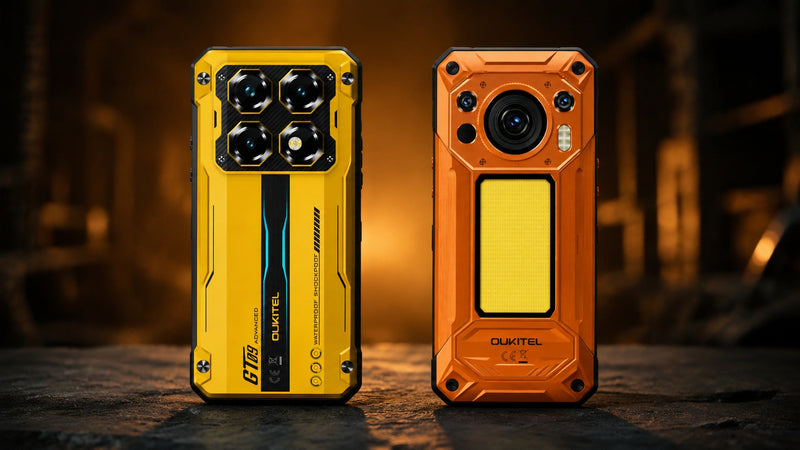
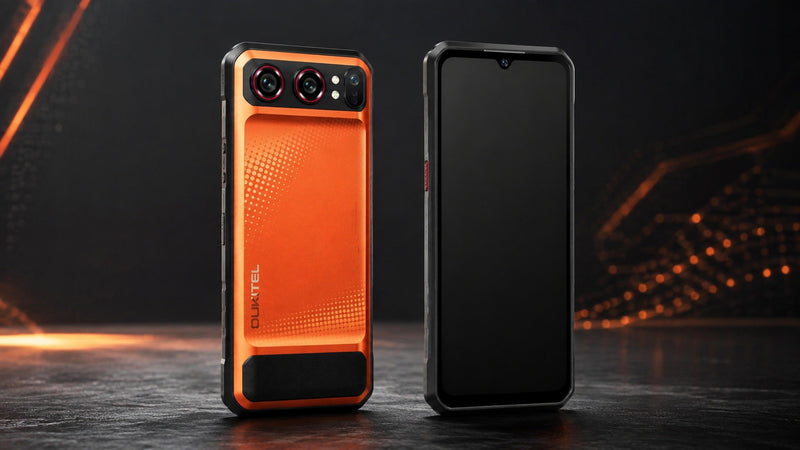
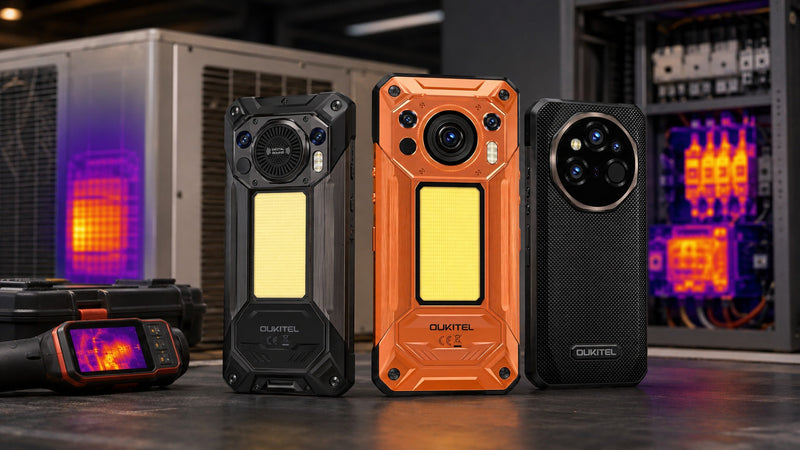
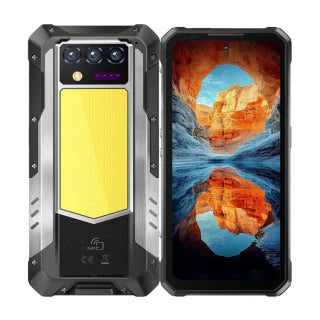
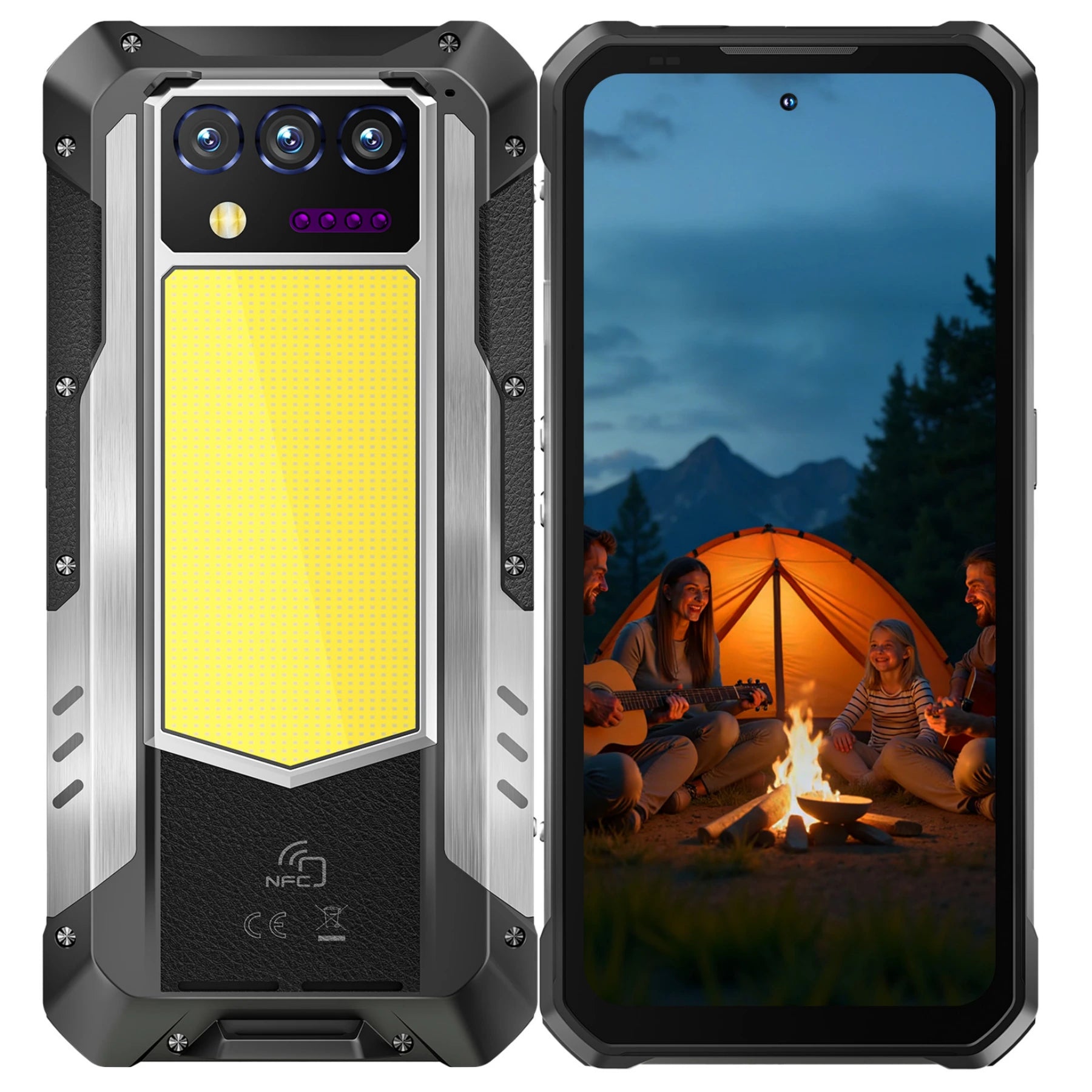
Tired of dropped connections and weak signals? The OUKITEL WP60 features a high-gain Bluetooth 5.4 antenna system and 16GB of RAM to ensure your wireless connections remain rock-solid, even in the toughest industrial environments.
Frequently Asked Questions
Can a rugged case cause Bluetooth to fail?
Standard rugged cases are fine, but metal cases or those with magnetic mounts can significantly interfere with the antenna, OUKITEL phones have antennas integrated into the chassis to minimize this. but third-party metal accessories should be avoided.
How many devices can I connect at once?
Most 2026 OUKITEL phones support Bluetooth 5.3/5.4. allowing you to connect a smartwatch. a pair of earbuds, and a car system simultaneously. However, if you experience lag, try disconnecting everything except the primary device.
What is "Bluetooth 5.4" and do I need it?
Bluetooth 5.4 (standard on the OUKITEL WP60) offers better encryption and "Periodic Advertising with Responses" (PAwR). This makes it much more reliable for connecting to multiple industrial sensors at once.
My phone is connected. but there is no sound. Why?
Go to Settings > Connected Devices, tap the gear icon next to your device, and ensure "Media Audio" and "Phone Calls" are both toggled ON.


Leave a comment
Your email address will not be published. Required fields are marked *